Alerts
This document guides users through the features and functionalities of the Alerts Page, including creating and managing alert rules, viewing triggered alerts, and configuring alert notifications.
Alert Notifications Page
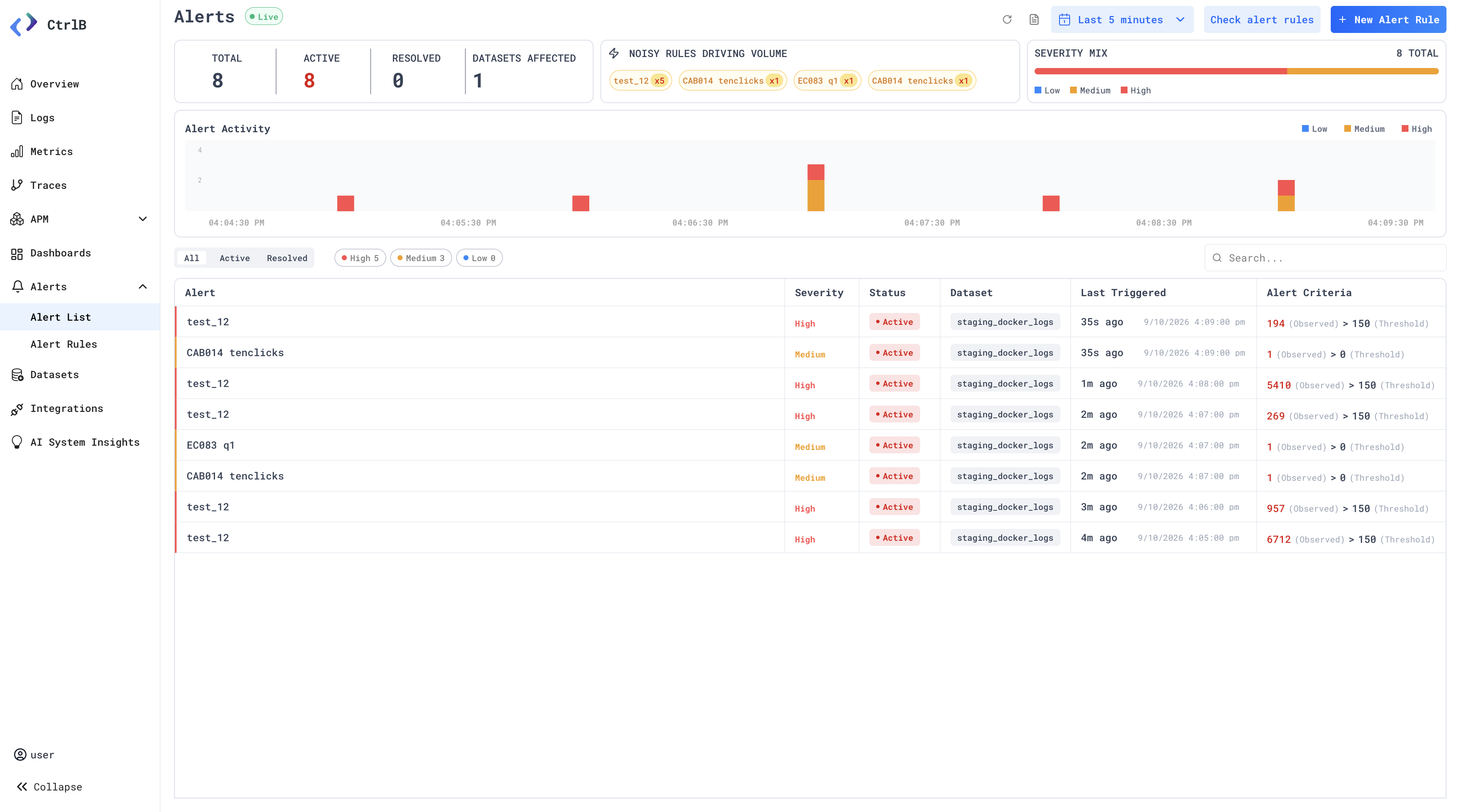
1.1 Viewing Notifications
The Alert Notifications page displays a list of all triggered alerts. Each alert includes:
- Rule Name
- Time of Trigger
- Status (Active, Recovered, etc.)
- Source/Environment
- Observed value vs threshold
1.2 Search Alerts
You can search alerts by:
- Rule name
- Alert Status
A filter panel is provided on the up left for refined alert searching.
Alert Rule Page
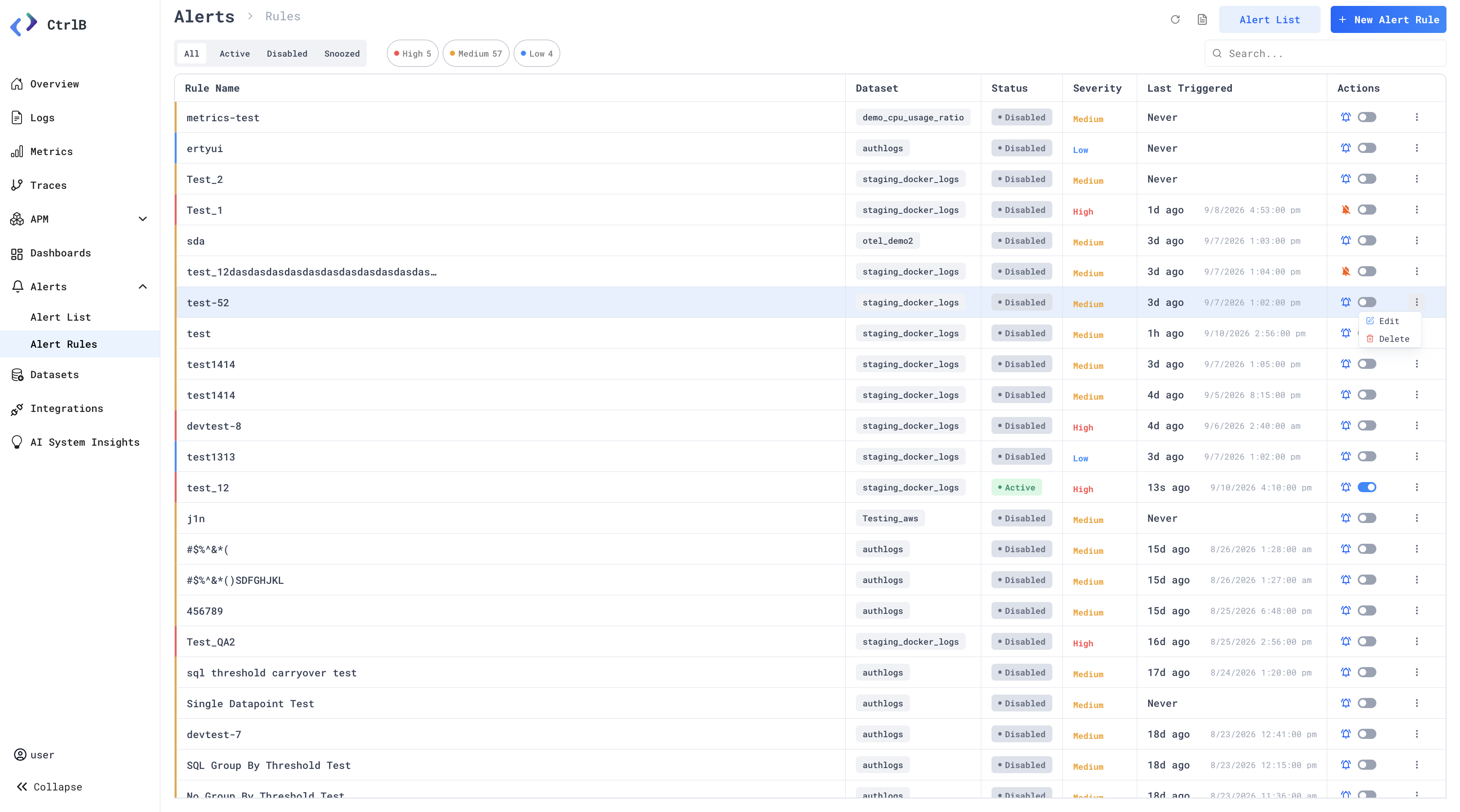
To access the Alert Rule page:
- Go to the 'Alerts' page
- Click on "Alert Rules" button, you will be redirected to Alert Rules page
2.1 Create Alert Rule
- Go to the Alerts page.
- Click on ' + New Alert Rule' button
- Under Basic Information, enter the Alert Rule Name and an optional Alert Rule Description, then click Next.
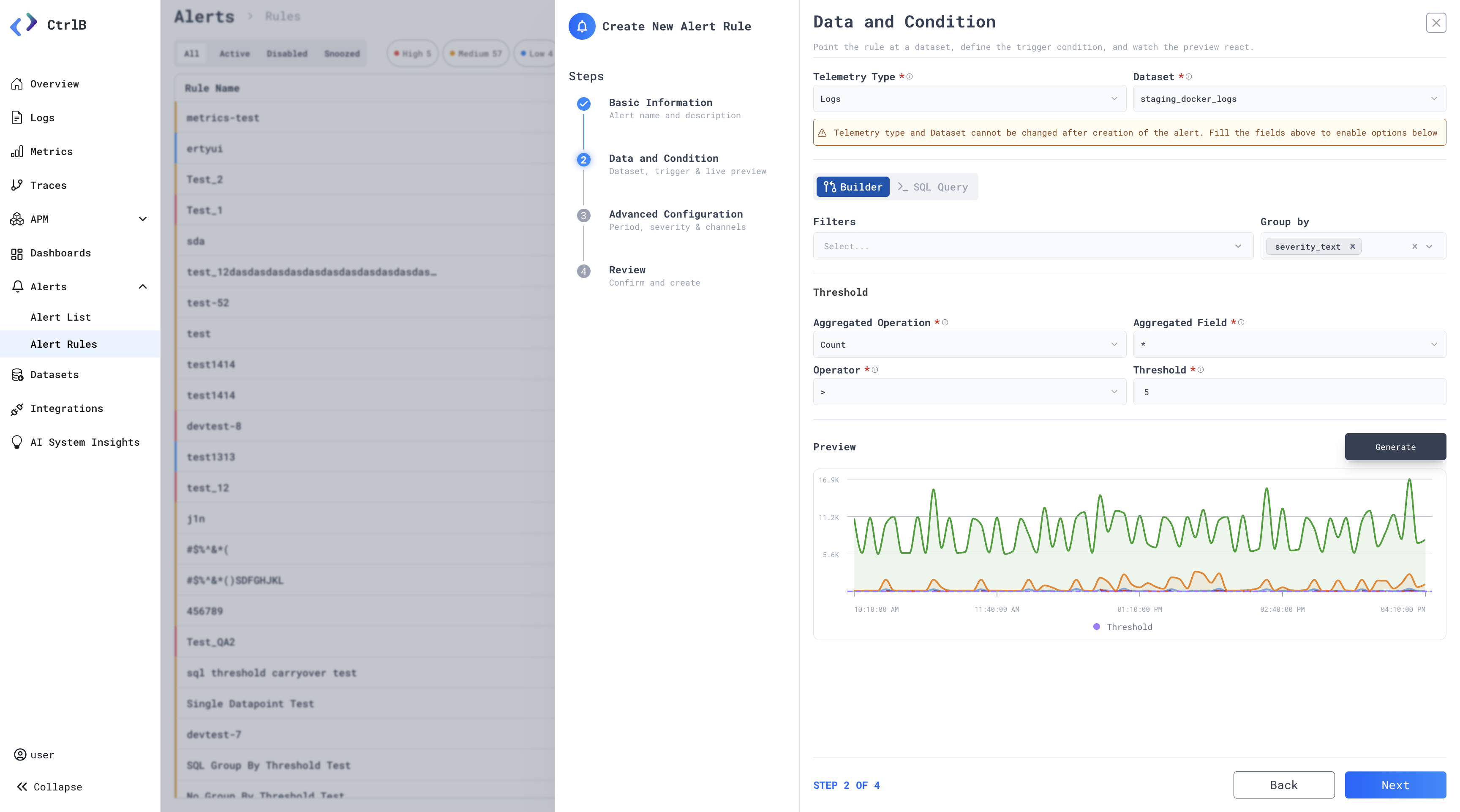
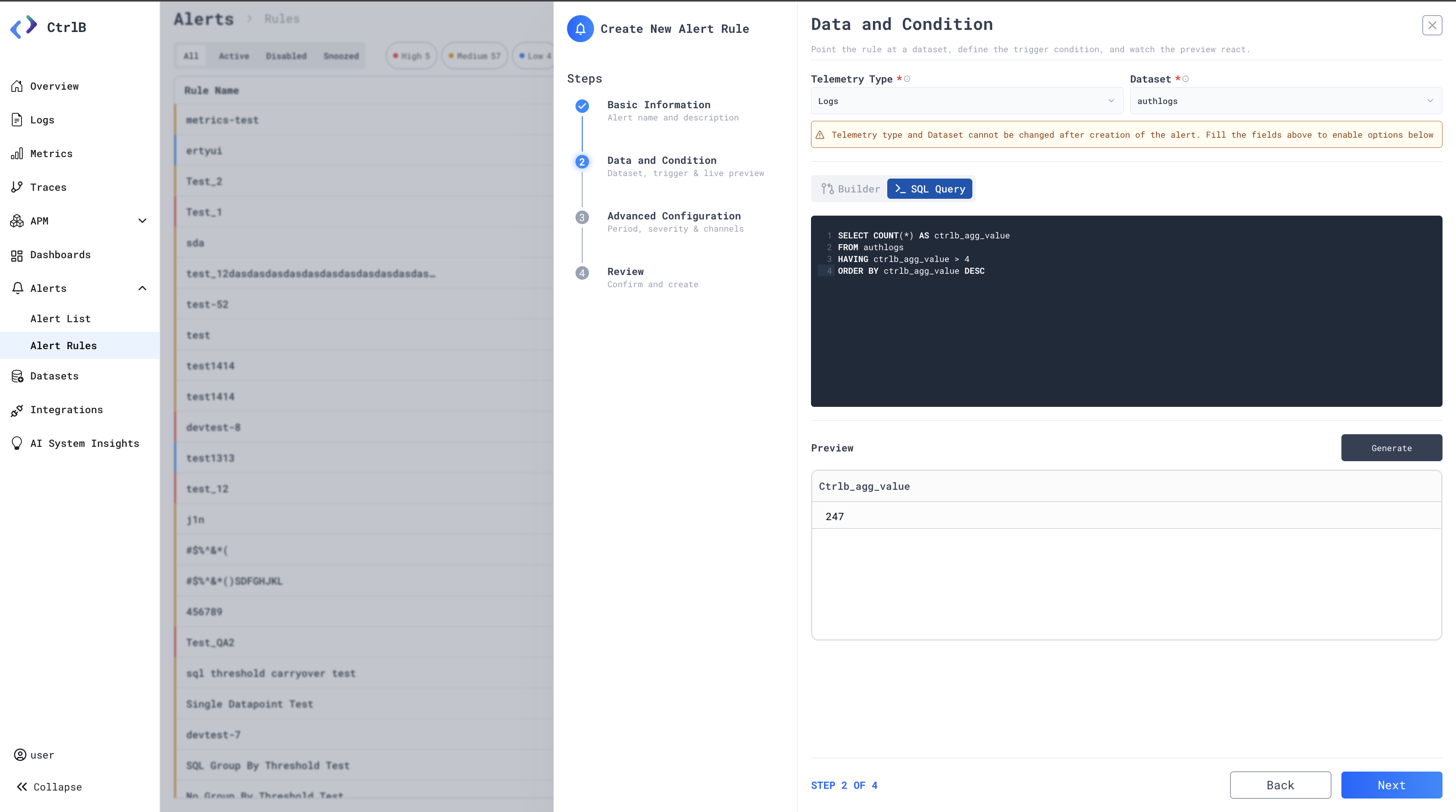
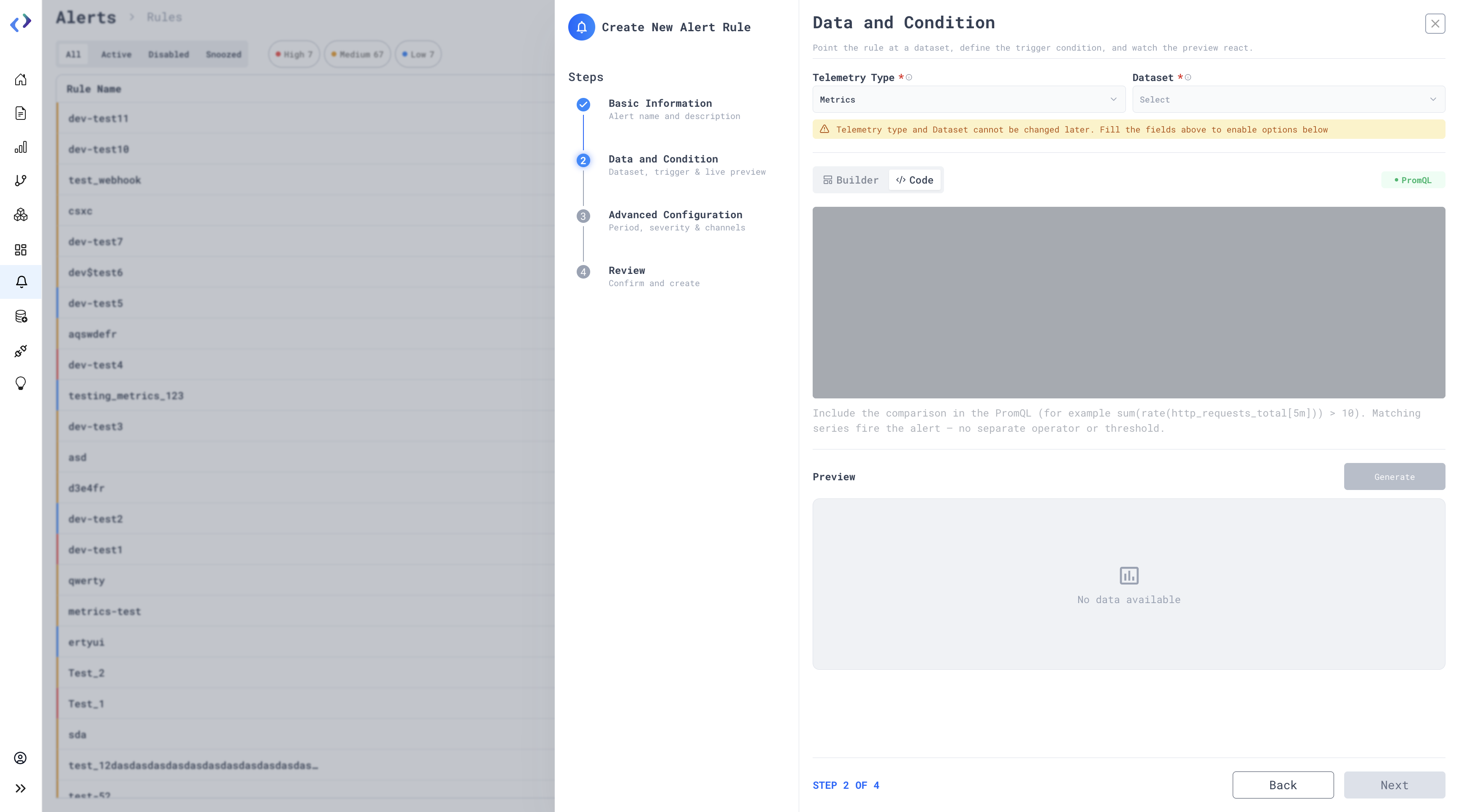
- Under Data and Condition, select either Logs, Traces, or Metrics as the Telemetry Type and select the required Dataset.
- Select the filters accordingly in the Builder mode or for complex queries choose the Code mode where you can use SQL or PromQL, depending upon the telemetry type chosen.
- If in Builder mode then define the Threshold condition accordingly in next section.
- Click Generate to preview the query results.
- Click Next to proceed to Advanced Configuration.
- Configure the Evaluation Period and Frequency, Alert Severity and Destination.
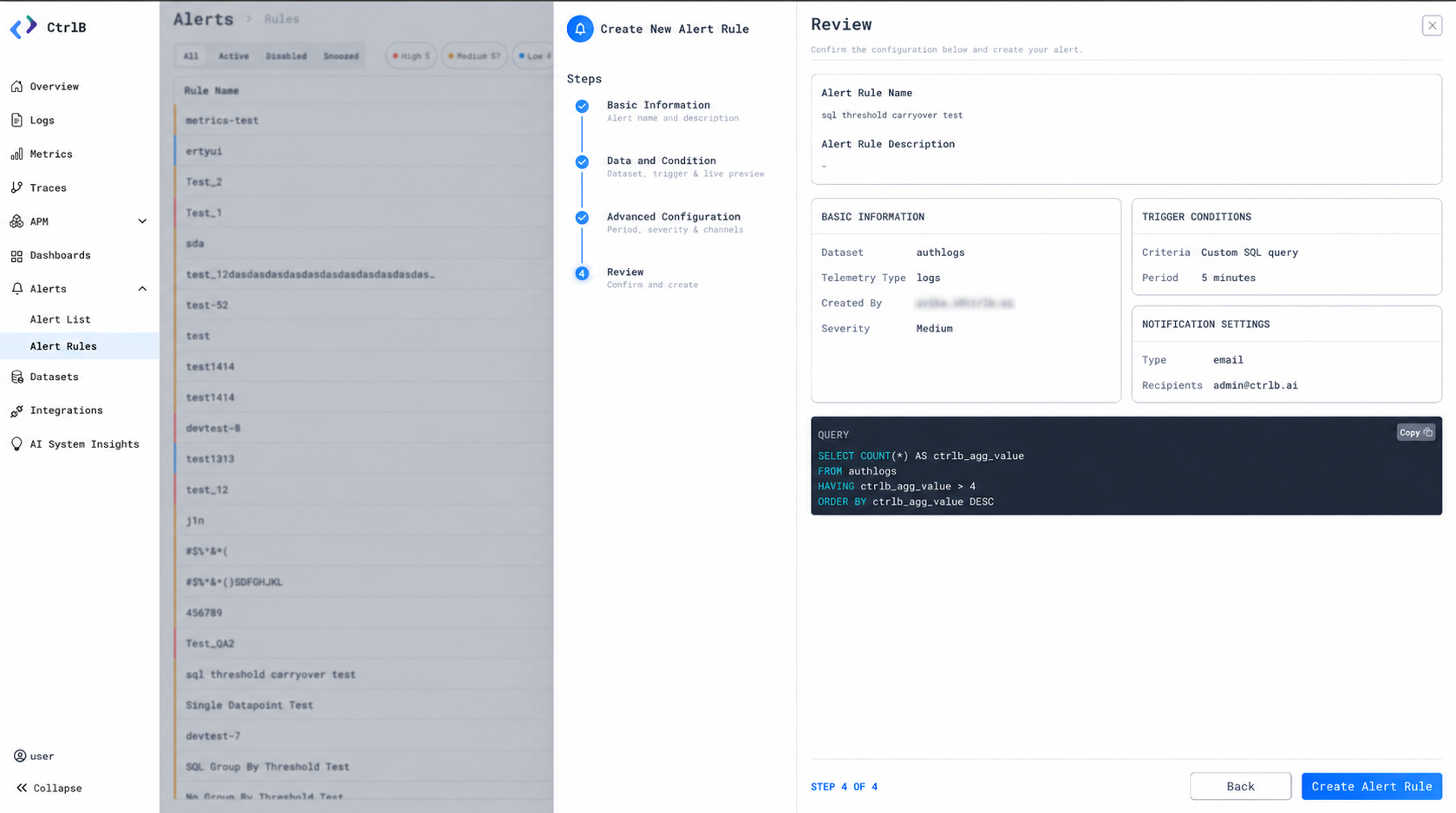
- Click Next to review all the alert details.
- Click Create Alert Rule.
Availability:
Available for users with permission to create and configure alerts.
Example: If the user wants to get an alert whenever the number of logs grouped by severity crosses threshold 5, within a window of 5 min, the following is how the user will fill the fields:
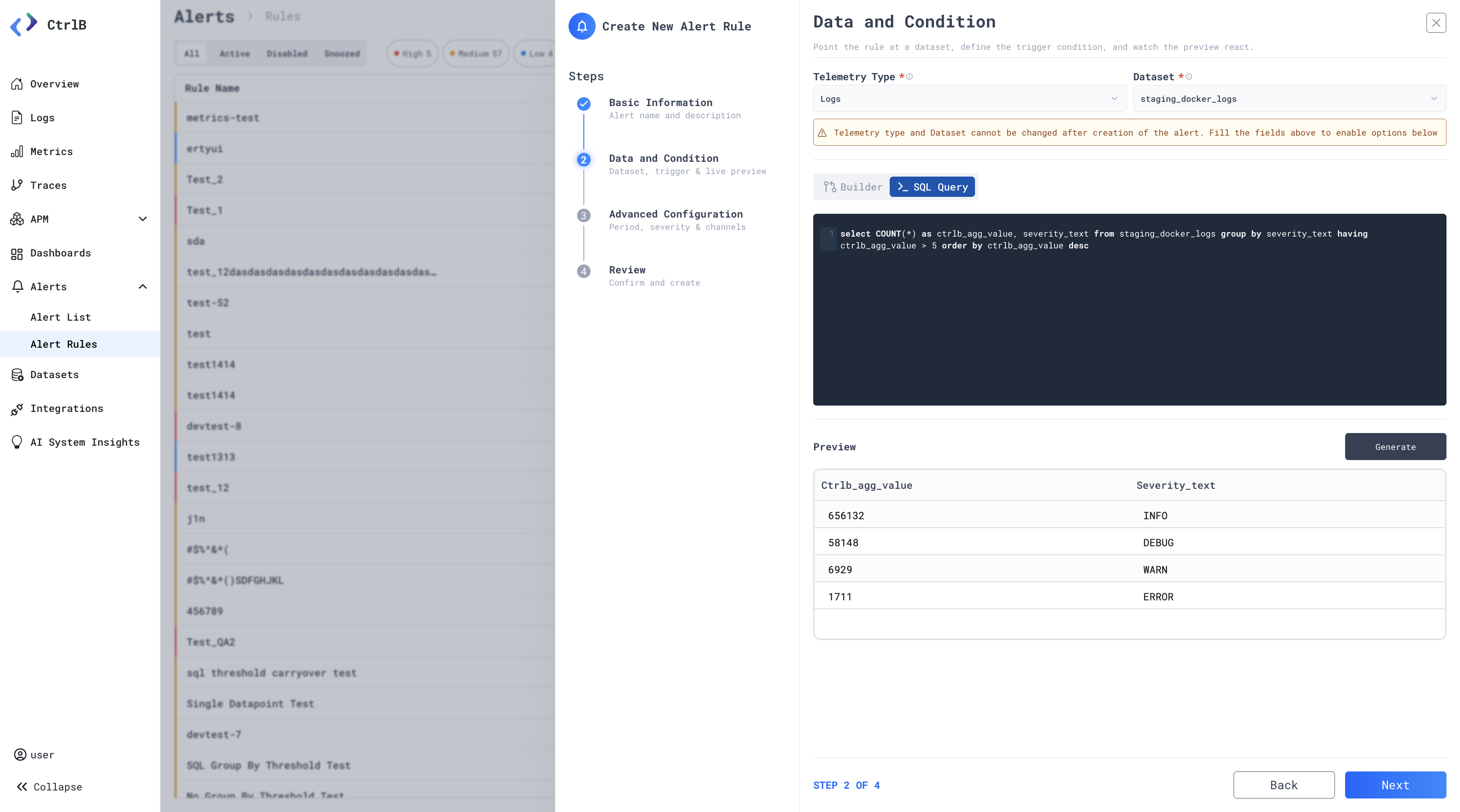
SQL and PromQL conditions are entered on the Data and Condition step. The last step reviews the rule before it is created.
2.2 View Alert Rule
Click on any rule name to see:
- Rule definition
- Trigger history
- Associated notifications
2.3 Edit Alert Rule
- From the 3 dot menu in the Action column next to the rule select "Edit"
- Make necessary changes to the query or thresholds
- Click "Update Alert Rule" to save the new settings
2.4 Delete Alert Rule
- Select "Delete" from the 3 dot menu in the Action column next to the rule
- Confirm the deletion to remove the rule permanently
2.5 Snooze Alert Rule
- Select "Snooze" from the 3 dot menu in the Action column next to the rule
- Choose a time period (e.g., 30 min, 90 min) or set a custom snooze duration
- During this period, the rule remains active but notifications will be suppressed
- After the snooze period ends, notifications will resume automatically
2.6 Disable Alert Rule
- From the 3 dot menu in the Action column next to the rule, select "Disable"
- The rule will stop being evaluated and no alerts will be triggered until re-enabled
- You can re-enable it anytime by toggling it back on
Support & Feedback
If you need assistance or would like to share feedback, please contact the product team through the Help tab or support@ctrlb.ai