CtrlB MCP
CtrlB exposes an MCP (Model Context Protocol) endpoint that lets AI-powered code editors query your observability data, investigate incidents, and explore telemetry — all without leaving your IDE.
- Server URL: Unique per customer — contact the CtrlB support team to get your endpoint.
- Transport: HTTP (Streamable HTTP)
- Authentication: Bearer token via
Authorizationheader
Prerequisites
- A CtrlB API key (this is separate from your data ingestion key)
- Your customer-specific MCP server URL (reach out to the CtrlB support team)
- One of the supported editors listed below
VS Code
VS Code supports MCP servers natively through GitHub Copilot's agent mode. Configuration is stored in an mcp.json file — either per-workspace (.vscode/mcp.json) or globally via the MCP: Open User Configuration command.
Setup
- Open the Command Palette (
Ctrl+Shift+P/Cmd+Shift+P). - Run MCP: Open User Configuration (for global access) or create
.vscode/mcp.jsonin your workspace root (for project-scoped access). - Add the following configuration:
{
  "inputs": [
    {
      "type": "promptString",
      "id": "ctrlb-api-key",
      "description": "CtrlB MCP API Key",
      "password": true
    }
  ],
  "servers": {
    "ctrlb": {
      "type": "http",
      "url": "<SERVER_URL>",
      "headers": {
        "Authorization": "Bearer ${input:ctrlb-api-key}"
      }
    }
  }
}
- VS Code will prompt you for the API key when the server starts for the first time. The value is stored securely and reused for subsequent sessions.
Verify
- Open the Command Palette and run MCP: List Servers — you should see
ctrlblisted. - Switch to Agent mode in the Copilot chat panel to use CtrlB tools.
Claude Code
Claude Code supports remote MCP servers over HTTP transport directly from the CLI.
Setup
Run the following command in your terminal:
claude mcp add --transport http ctrlb <SERVER_URL> \
  --header "Authorization: Bearer <YOUR_CTRLB_API_KEY>"
Replace <YOUR_CTRLB_API_KEY> with your actual API key.
Scoping
Use the --scope flag to control where the configuration is stored:
| Scope | Flag | Description |
|---|---|---|
| Local (default) | --scope local | Available only to you in the current project |
| Project | --scope project | Shared with team via .mcp.json in the project root |
| User | --scope user | Available to you across all projects |
Example with user scope:
claude mcp add --transport http ctrlb <SERVER_URL> \
  --header "Authorization: Bearer <YOUR_CTRLB_API_KEY>" \
  --scope user
Alternative: JSON configuration
You can also add the server directly from a JSON snippet:
claude mcp add-json ctrlb '{
  "type": "http",
  "url": "<SERVER_URL>",
  "headers": {
    "Authorization": "Bearer <YOUR_CTRLB_API_KEY>"
  }
}'
Verify
claude mcp list       # List all configured servers
claude mcp get ctrlb  # Check details for the CtrlB server
Within a Claude Code session, run /mcp to view server status interactively.
Connect Claude Desktop to CtrlB MCP
Connect Claude Desktop to the CtrlB MCP server using a Custom Connector.
Setup
- Open Settings in Claude Desktop.
- Navigate to Connectors. Depending on your Claude version, Settings → Customize → Connectors.
- Click Add and choose Add Custom Connector.
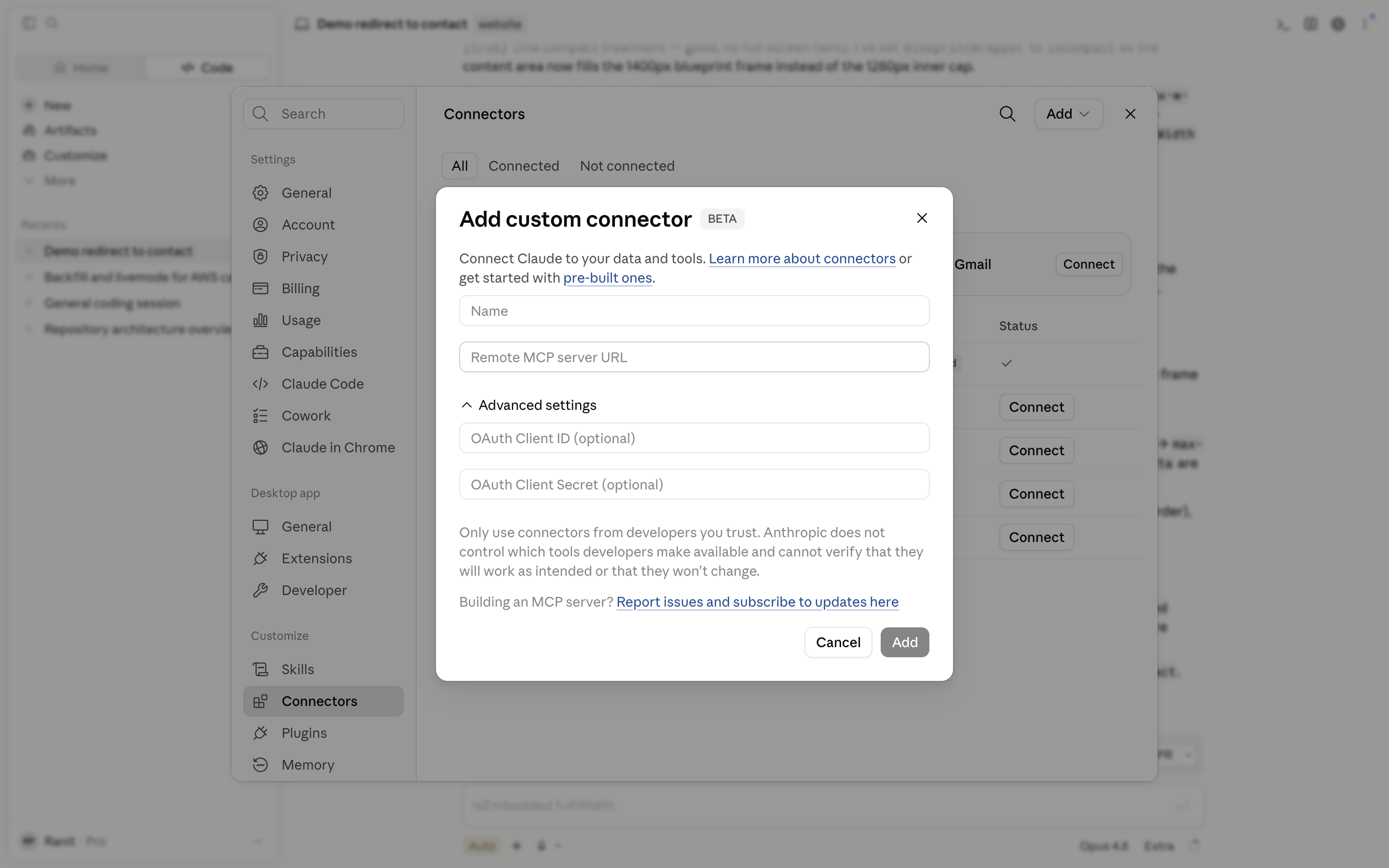
- Enter the following details.
| Field | value |
|---|---|
Name | CtrlB (or any preferred name). |
Remote MCP server URL | https://<SERVER_URL>/mcp?api_key=<YOUR_CTRLB_API_KEY> |
- Leave OAuth Client ID/Secret blank as they are not required for the CtrlB MCP connector.
- Click Add to create the connector. Once the connector is added, review the requested permissions and click Allow to complete the connection
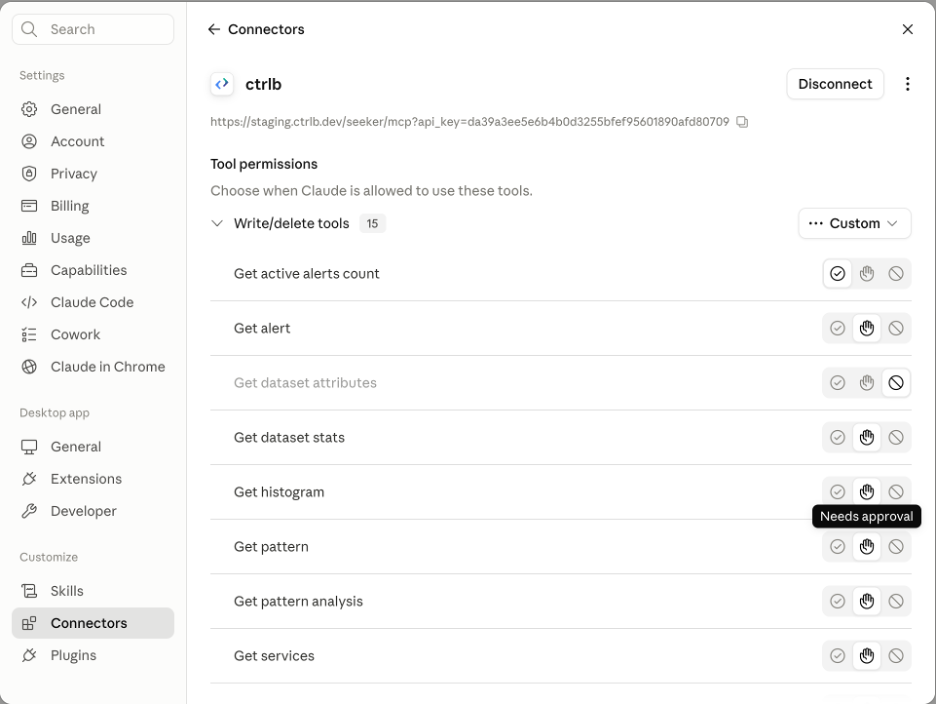
Note:
- For Team and Enterprise users: A Workspace Owner or Primary Owner must first add the CtrlB MCP connector to the organization. After it has been added, members can connect and authenticate the connector from their own Claude Desktop account.
- Only for Claude Desktop, the API token goes in the query param and not in authorization header, as mentioned at the start of the doc.
Verify
- Start a new Claude conversation.
- Open the available connectors or tools list and verify that your CtrlB connector appears.
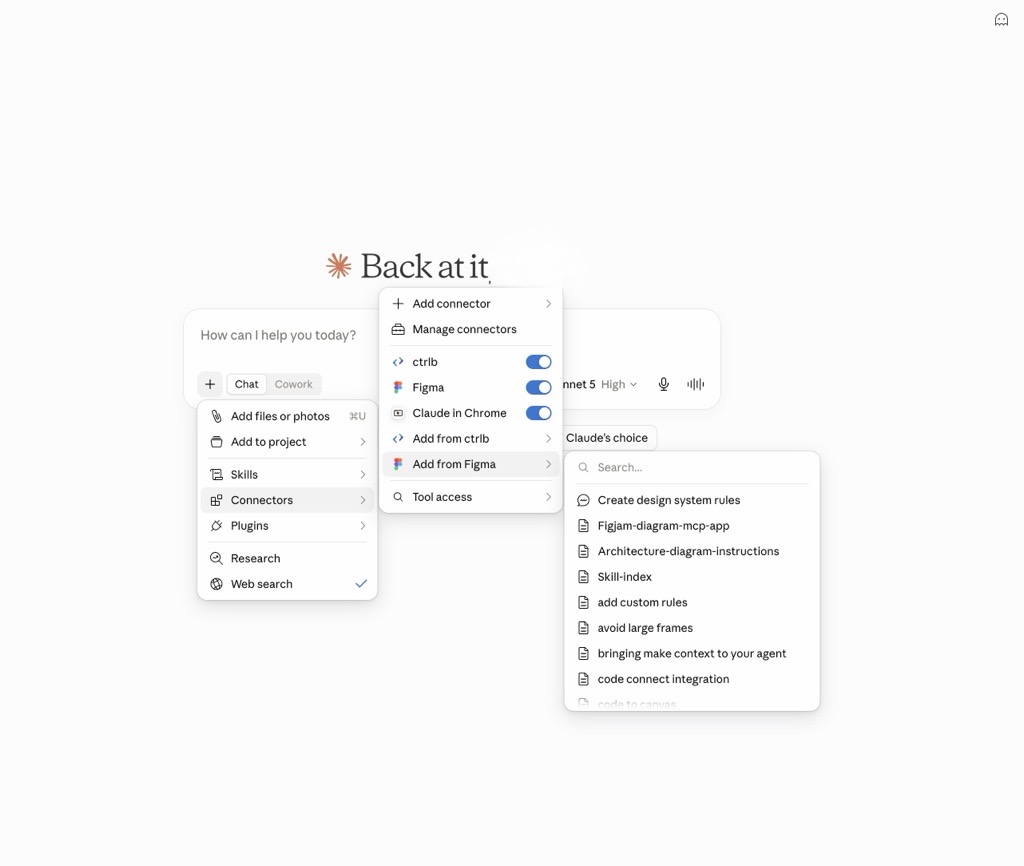
- You can test the connection with prompts such as: List my observability datasets.
- If configured correctly, Claude will be able to access CtrlB MCP tools including Logs, Metrics, Traces, Alerts, and Insights.
Note:
- Remote MCP connectors run from Anthropic's cloud infrastructure, not from the local Claude Desktop application. If your CtrlB MCP server is protected by a firewall or hosted on a private network, allowlist Anthropic's IP ranges to enable successful connections.
- Claude Free supports only one custom connector. Remove an existing custom connector before adding CtrlB MCP.
Troubleshooting
| Issue | Resolution |
|---|---|
Connector cannot be added | Verify that the URL is publicly reachable over HTTPS and ends with /mcp?api_key=... |
Invalid API key (401) | Generate a new API key or verify the existing one |
Unauthorized during first tool invocation (401) | Verify that the CtrlB API key is valid and has not expired. Generate a new API key if required. |
Tools do not appear | Enable the connector for the current conversation or start a new chat |
Cursor
Cursor supports MCP servers through its settings UI or by editing the configuration file directly.
Setup
-
Open Cursor Settings (
Cmd+Shift+P/Ctrl+Shift+P→ "Cursor Settings"). -
Navigate to Tools & Integrations → MCP Tools.
-
Click New MCP Server and select Streamable HTTP as the type.
-
Alternatively, edit the configuration file directly at:
- macOS / Linux:
~/.cursor/mcp.json - Windows:
%USERPROFILE%\.cursor\mcp.json
Or create a project-scoped config at
.cursor/mcp.jsonin your project root. - macOS / Linux:
-
Add the following configuration:
{
  "mcpServers": {
    "ctrlb": {
      "url": "<SERVER_URL>",
      "headers": {
        "Authorization": "Bearer <YOUR_CTRLB_API_KEY>"
      }
    }
  }
}
Replace <YOUR_CTRLB_API_KEY> with your actual API key.
Verify
- Open Cursor Settings → Tools & Integrations. The CtrlB server should appear under MCP Tools with its available tools listed.
- In the Composer panel, switch to Agent mode — the agent will automatically use CtrlB tools when relevant.
Windsurf
Windsurf (formerly Codeium) supports MCP via its Cascade AI agent. Configuration is managed through the mcp_config.json file.
Setup
-
Open the MCP configuration file at:
- macOS / Linux:
~/.codeium/windsurf/mcp_config.json - Windows:
%USERPROFILE%\.codeium\windsurf\mcp_config.json
You can also access it through: Windsurf Settings → Cascade → MCP Servers → View raw config.
- macOS / Linux:
-
Add the following configuration:
{
  "mcpServers": {
    "ctrlb": {
      "serverUrl": "<SERVER_URL>",
      "headers": {
        "Authorization": "Bearer <YOUR_CTRLB_API_KEY>"
      }
    }
  }
}
Replace <YOUR_CTRLB_API_KEY> with your actual API key.
Note: Windsurf uses
serverUrl(noturl) for HTTP transport servers.
Using environment variables
Windsurf supports environment variable interpolation. To avoid hardcoding your API key:
{
  "mcpServers": {
    "ctrlb": {
      "serverUrl": "<SERVER_URL>",
      "headers": {
        "Authorization": "Bearer ${env:CTRLB_API_KEY}"
      }
    }
  }
}
Then set CTRLB_API_KEY in your shell environment before launching Windsurf.
Verify
- Click the MCP servers button (hammer icon) in the Cascade chat panel.
- Click Refresh to load the new server.
- The CtrlB server and its tools should appear in the list.
Available Tools
Once connected, the following tools are exposed to your editor's AI agent.
Datasets
| Tool | Description |
|---|---|
list_datasets | List all available datasets for a given telemetry type (logs, traces, or metrics) |
get_dataset_stats | Get storage statistics (doc count, size, time range) for all datasets of a telemetry type |
get_dataset_attributes | Get the schema (field names and types) for a specific dataset |
Logs
| Tool | Description |
|---|---|
search_logs | Query logs using SQL syntax. |
get_histogram | Get time-bucketed volume data for a dataset — useful for spotting spikes and trends |
Traces
| Tool | Description |
|---|---|
get_trace | Retrieve all spans for a distributed trace by trace ID |
get_services | List services with performance stats (latency, error rate, throughput) from a traces dataset |
Alerts
| Tool | Description |
|---|---|
list_alert_conditions | List configured alert conditions, optionally filtered by telemetry type and dataset |
list_alerts | List triggered alerts with filters for dataset, status, and time range |
get_alert | Get details of a specific triggered alert by ID |
get_active_alerts_count | Get the count of currently active (triggered) alerts |
Usage
| Tool | Description |
|---|---|
get_usage_stats | Get data ingestion usage statistics for the workspace over a time period |
Troubleshooting
Server not connecting
Ensure the CtrlB MCP endpoint is reachable. You can verify with a quick curl:
curl -X POST <SERVER_URL> \
  -H "Content-Type: application/json" \
  -H "Authorization: Bearer <YOUR_CTRLB_API_KEY>" \
  -d '{"jsonrpc":"2.0","method":"initialize","params":{"protocolVersion":"2024-11-05","capabilities":{}},"id":1}'
If this fails, check your network connectivity and ensure your API key is valid.
Authentication errors
- Verify your API key is correct and has not expired.
- In VS Code, stop and restart the MCP server from the Command Palette (
MCP: List Servers→ selectctrlb→ restart). VS Code will re-prompt for the API key. - In Claude Code, re-add the server with the updated key:
claude mcp remove ctrlb
claude mcp add --transport http ctrlb <SERVER_URL> \
--header "Authorization: Bearer YOUR_NEW_KEY" - In Cursor and Windsurf, update the key directly in the config file and refresh.
Tools not appearing
- VS Code / Cursor: Make sure you are in Agent mode — MCP tools are not available in standard chat mode.
- Windsurf: Click the MCP servers button (hammer icon) in the Cascade panel and hit Refresh after adding or updating the config.
- Claude Code: Run
/mcpinside a session to check whether the server shows as connected.
Windsurf: url vs serverUrl
Windsurf uses serverUrl for remote HTTP servers. If you use url instead, the server may silently fail to connect. Always use serverUrl in mcp_config.json.
Timeout on startup
If the server takes longer than usual to initialize, increase the startup timeout:
- Claude Code: Set the
MCP_TIMEOUTenvironment variable before launching:MCP_TIMEOUT=15000 claude - Other editors: Check the MCP server logs in your editor's output panel. Common causes include network latency or transient connectivity issues.